

![Kingdom Hearts Collection [I~III]](https://monstervine.com/wp-content/uploads/2026/10/KHC-Review-Art-600x337.png)



































































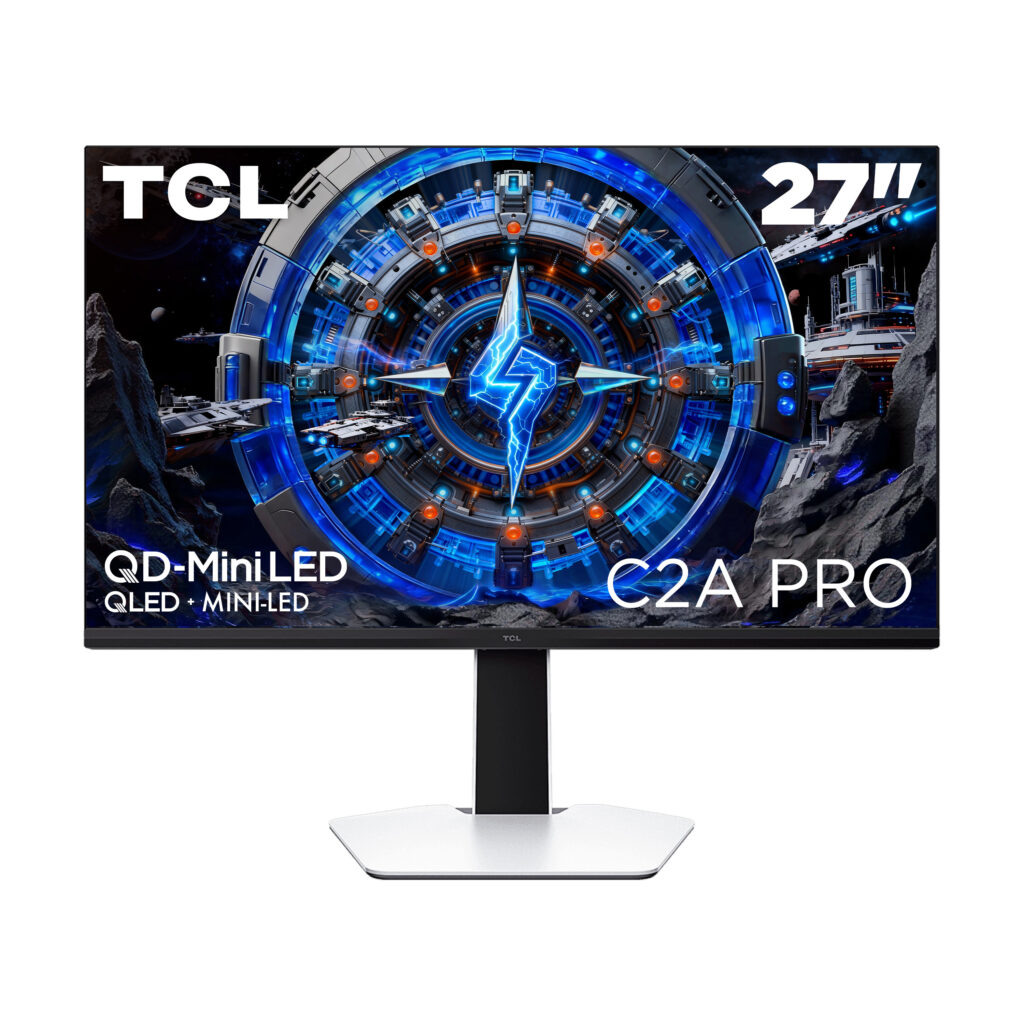
TCL has a new competitor in the market with the C2A Pro, offering a compact option with extremely impressive performance.
C2A Pro Specs:
- Display: 27-inch QD-Mini LED, HFS/Fast IPS-style panel, anti-glare
- Resolution: 3840 × 2160 (4K UHD), 16:9
- Refresh Rate: 160Hz at 4K / 320Hz at 1080p via Dual Mode
- Local Dimming: 2,304 Mini LED dimming zones
- HDR: VESA DisplayHDR 1400
- Brightness: Up to 2,000 nits peak / 1,400 nits full-screen
- Response Time: 1ms GtG / 0.2ms MPRT
- Color: 10-bit via 8-bit + FRC; 99% DCI-P3 / 99% sRGB; ΔE <2
- Adaptive Sync: AMD FreeSync Premium / NVIDIA G-SYNC Compatible
- Ports: 2× HDMI 2.1, 1× DisplayPort 1.4, 1× USB-C with DisplayPort Alt Mode and 90W charging, USB hub/KVM connectivity, headphone output
- KVM: Built-in KVM support for switching peripherals between two computers
- Speakers: 2× 5W built-in speakers
- Stand: Height, tilt, swivel and pivot adjustment
- Other Features: T-MOC motion clarity, game modes/FPS counter/timer, DC dimming/flicker-free operation, rear “Wings of Light” RGB lighting
Monitors are often the last thing to be upgraded when it comes to improving your gaming experience, and over the years I have made many arguments trying to convince folks that, instead of spending hundreds of dollars to squeeze out a tiny bit of performance, replacing your 10-year-old screen is going to give you an immediately better experience.
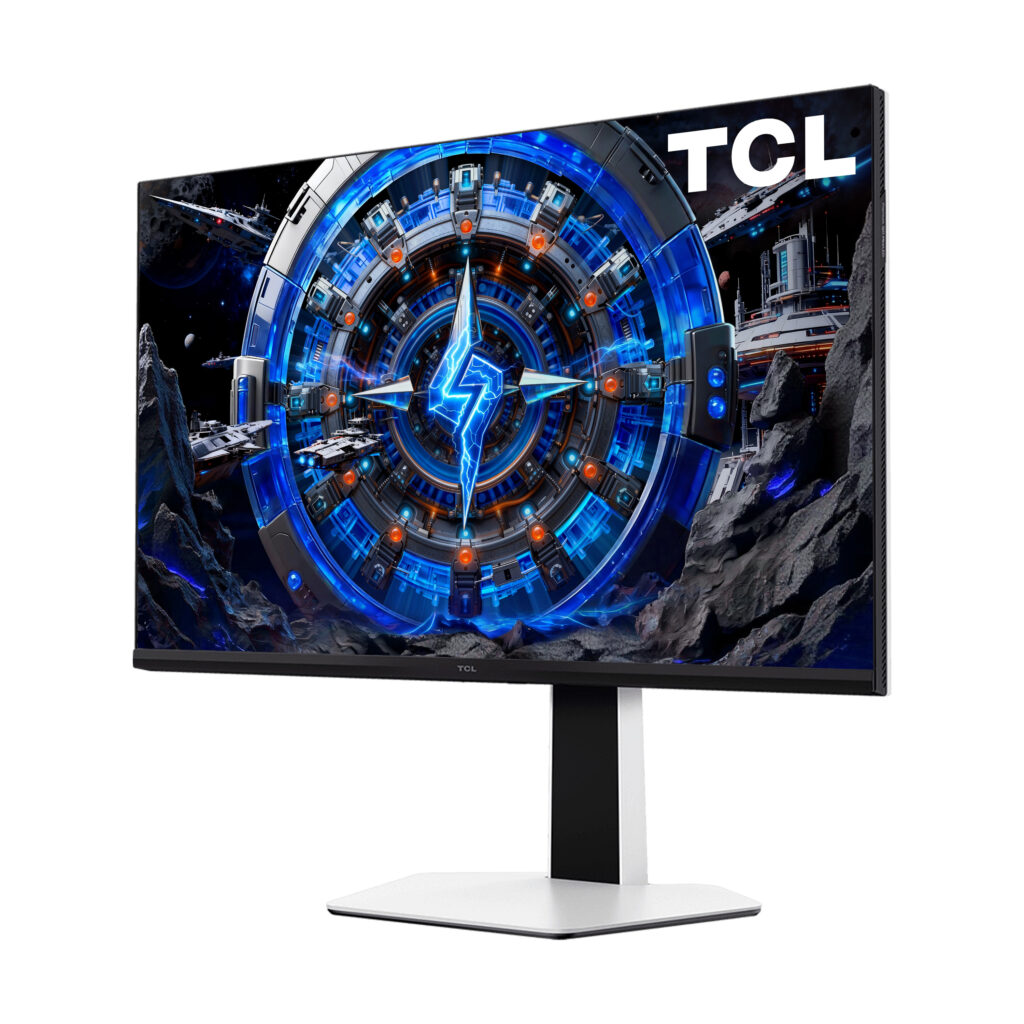
Too often, upgrading components just isn’t worth it, especially in an era of outrageous price surges, but the C2A Pro’s $800 MSRP can give you the boost you are looking for without feeling like ramageddon inflated your purchase cost.
I have way too many screens in my house, which is much more noticeable now that we are living with a 12-month-old and implementing a no-screen policy. I don’t upgrade my primary PC display as often as I’d like, but I keep up with the latest tech. I bounce between a couple of OLED displays and an older 144Hz 1440p screen, so when I finally got the chance to get hands-on with a high-refresh-rate screen, I was excited.
The C2A Pro has a lot of modern, interesting features, but I was most looking forward to the UHD 160Hz and FHD 320Hz refresh rates.
From the moment I started unpacking the C2A Pro, it was clear that a lot of thought and attention had been put into this device, not something I would typically associate with the TCL brand.
Despite being packed in a typical brown cardboard box, what was inside was cleverly packed, and from unwrapping everything to setting it up, it immediately changed the expectations I’d associated with TCL.
Assembly is tool-free and effortless. Some previous monitors and TVs have been a pain, but the smaller size and the way the hardware connected together made the C2A Pro very easy and quick to assemble out of the box.
What jumped out while assembling the parts was the build quality. The stand has a good heft, the panel feels solid, and my calloused, scratchy hands didn’t feel like they were going to damage anything as I put it together. After several weeks, that initial impression has held up. I haven’t had any quality-control issues, dead pixels, loose pieces, or anything else that indicates something might break anytime soon.
The stand is very versatile and easy to adjust for height, tilt, swivel, and even portrait rotation. It’s not something I’ll use daily, but it’s nice not to have to fight your monitor stand to set things up the way you want. It’s stable and sturdy, with no distracting wobble during furious typing.
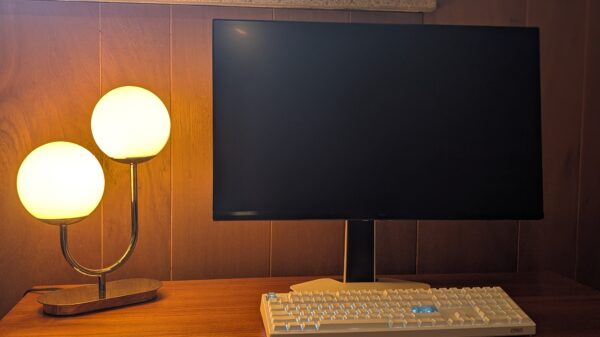
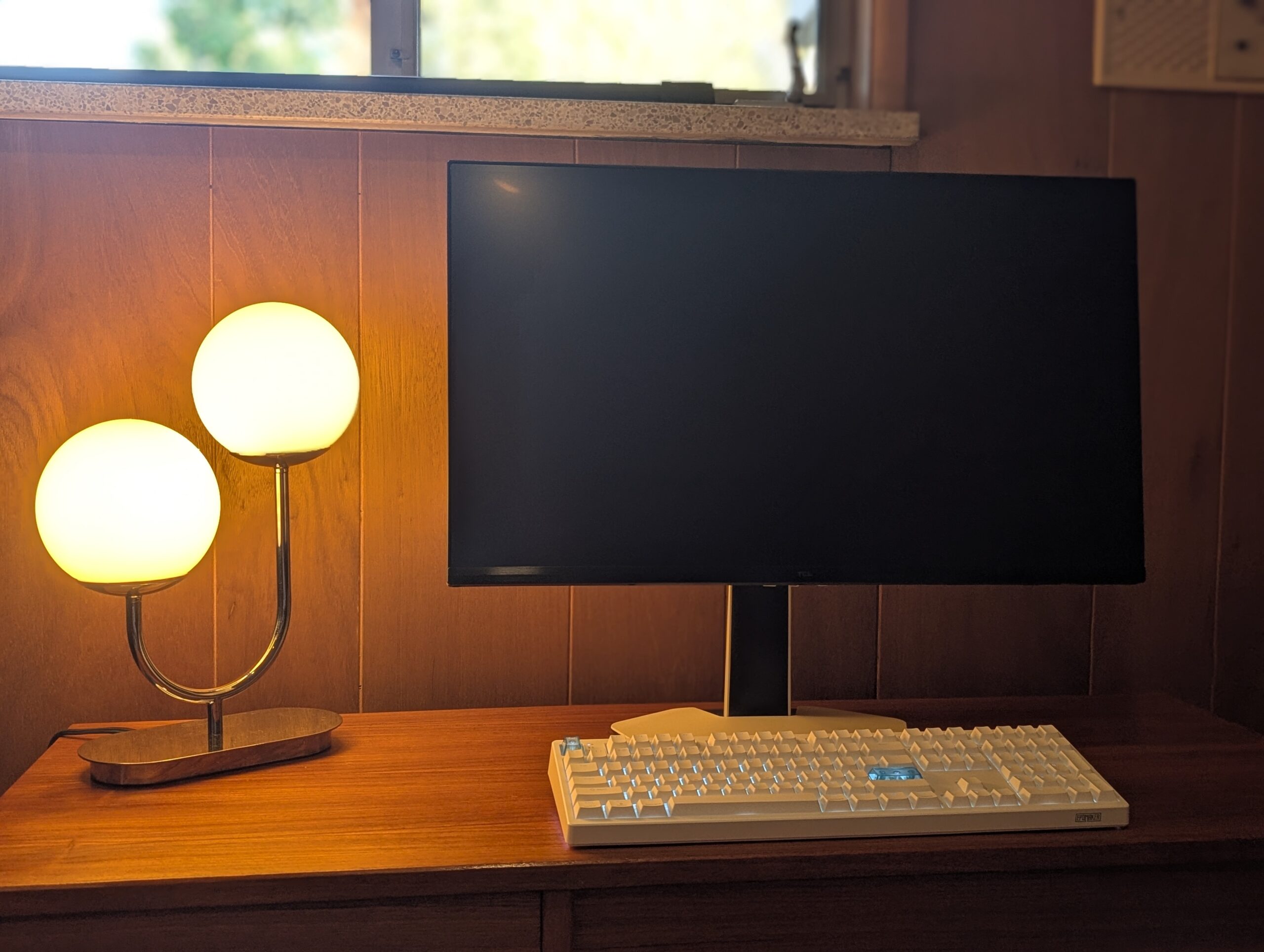
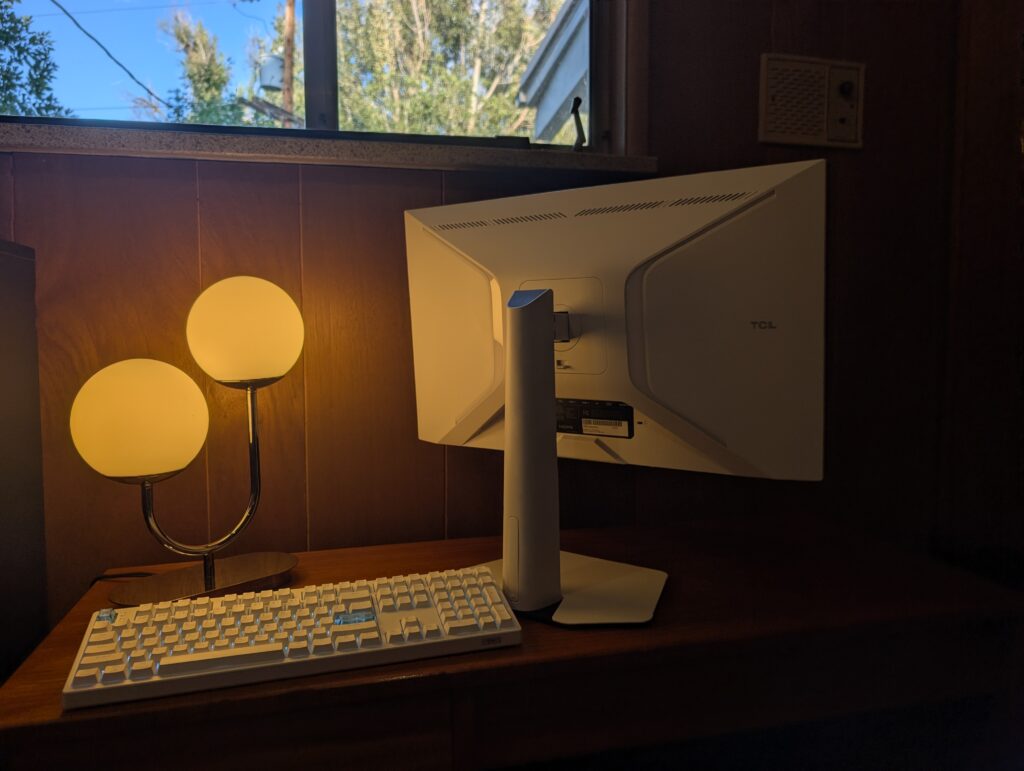
Another thing that surprised me was the fact that the C2A Pro is almost entirely white. I love this. My whole desktop aesthetic accidentally ended up being wood and white, thanks to the Fractal North case I ended up with and some lucky deals on a white motherboard and GPU, so the C2A with its white back and white stand merged effortlessly with my existing setup.
The panel feels compact, and the design feels at home in my white-and-wood office space. The panel isn’t remarkably thin or thick, and the bezel isn’t either. The design doesn’t distract and blends in stylistically with the space I have created.
One thing immediately bothered me. The back of the display has an RGB color bar in a reverse-bracket-style pattern: ] [.
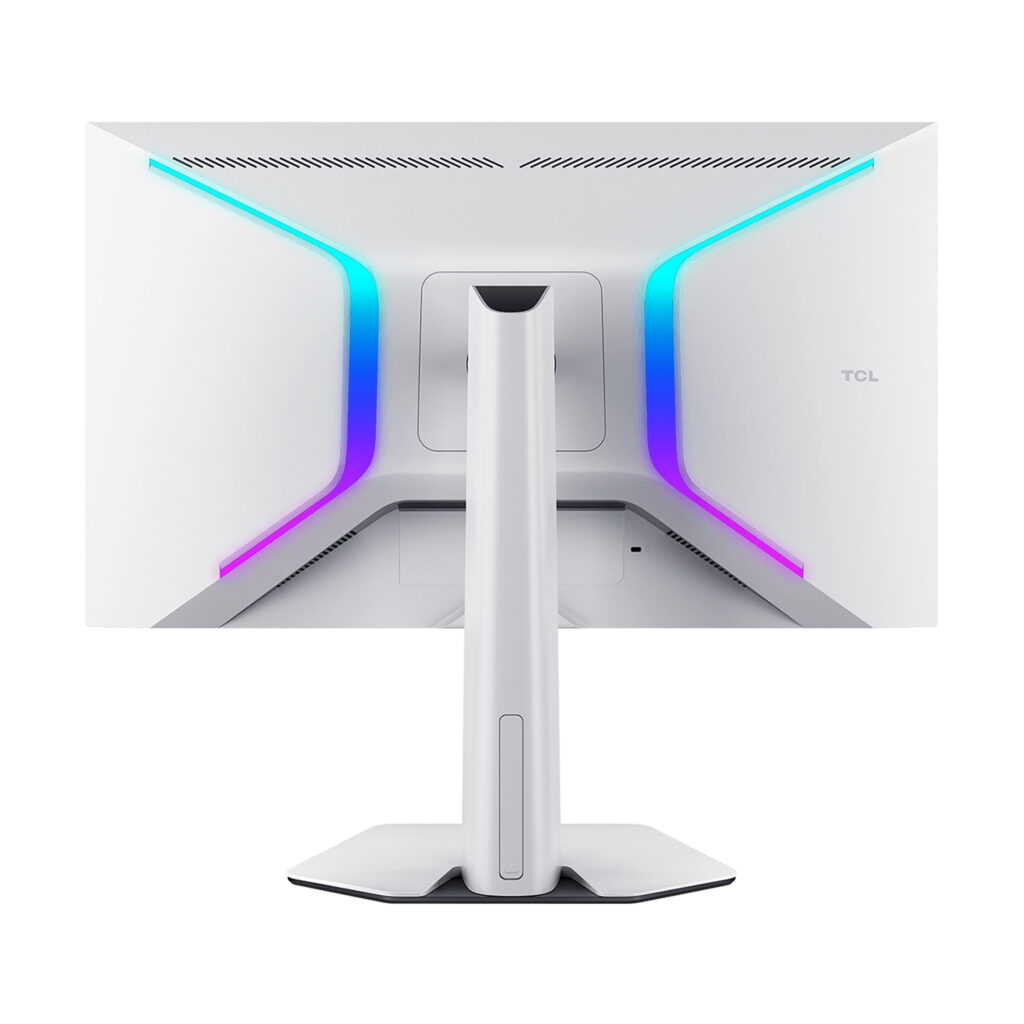
I have been a little sick of RGB and bright colors spilling out of every device I own. Rainbow Brite has never been my style, and quickly after 2007 I started actively seeking out products that shipped without RGB.
Thankfully, the C2A Pro gives you some options. The lighting can cycle or display a solid color, and the white-light option was actually tolerable. I’m not sure whether I’ll keep it enabled in the future, but it was nice to have some choices that weren’t entirely distracting. More importantly, you can shut it off completely without installing any clunky software.
Out of the box, the C2A Pro also feels like a complete package. I was particularly pleased that it came with the right DisplayPort cable, so I didn’t have to second-guess the random ones sitting in my drawer and wonder whether one was preventing me from using all the features.
If you ask the other folks on the MonsterVine team, and my wife, they might tell you I have a cable addiction, so I might not be the ultimate source of trust on this one.
The C2A Pro powers on and defaults to the 160Hz UHD setting. Immediately, I was just enthralled by moving my mouse around.
160Hz doesn’t seem THAT much higher than the 144Hz I was used to, but the difference was surprisingly obvious. Combined with the jump from 1440p to 4K, the smoothness was even more noticeable.
Even after spending weeks with it, 160Hz feels better across the board. The higher refresh rate, even outside of games, is a wonderful experience.
The screen size is definitely smaller than I was used to. In my recent gaming, I have been comfortable with a 55-inch OLED display, but the detail and color richness were more than I expected from an LED display.
The colors feel natural and punchy in a good way. The default settings feel tuned more toward gaming images, but even the neutral, mundane designs of Windows 11 felt a bit more vibrant and engaging than what I was used to.
Nothing compares to the contrast and black levels of an OLED. As many brands claim their tech is just as good as OLED, in practice it just doesn’t touch it.
That said, after some initial setup and longer gaming sessions, the inky blacks of OLED fade into the background, and the nitpicking goes away. Mini LED’s limitations are most apparent in side-by-side comparisons with OLED. Once I was actually playing games, it didn’t take long for me to stop caring.
I didn’t spend much time tweaking the settings at first because I wanted to get a feel for the defaults. Once I started playing games, though, I needed to adjust the local dimming.
There was some significant bleed and blooming that could be distracting. In darker scenes, I would sometimes get a strange washed-out effect around sections of the screen.
Local dimming was also distracting during basic desktop use with a dark theme. When the screen was mostly black with white text, some text would be bright white while areas toward the edges were noticeably darker.
For word processing and normal computer tasks, I preferred keeping local dimming on Low or Off. When playing games, I preferred Medium or High.
That’s one of the things that makes me wish changing settings was easier, because the setting I prefer depends on what I am doing.
HDR is still a bit of a novel experience for me on PC. I love HDR on modern TVs, where it makes a huge difference in console gaming, and HDR on monitors has been slower to catch up.
The peak brightness of the C2A Pro doesn’t immediately jump out at you every second you use it. Then you get the right scene.
Halo was another experience. The lighting and details are intense. Halo games have bright, flashing colors and explosions, which the monitor’s HDR and brightness amplified dramatically. Covenant explosions in particular created some striking moments that would have been lost on an older LCD non-HDR monitor.
Once I adjusted the picture, Halo looked fantastic at 4K.
Motion is clean and clear during action sequences. VRR worked without me having to fight with it, and I never noticed tearing or stuttering during fast-paced pans or rapid movement. I even spent some time with various benchmarking and testing applications and made myself dizzy before I noticed anything jarring or jittery.
I also noticed no perceptible input lag in any of my tests. The display never felt like it was holding me back.
This isn’t a laboratory-style review. MonsterVine does a lot of hardware reviews and bases them on real-world experiences in varied environments. We let the laboratory environments handle the colorimeters, brightness meters, calibration tools, HDR test comparisons, and similar measurements. My experience with the C2A Pro comes from using it every day for gaming and productivity.
The big headline feature for the C2A Pro is the ability to switch between 4K/160Hz and 1080p/320Hz.
What initially seemed like an unfortunate limitation, gating the highest refresh rate of 320Hz behind a 1080p resolution, ended up humbling me for thinking my four-year-old gaming rig could even handle running most modern games while getting anywhere near 320 frames per second.
Counter-Strike 2 felt like the obvious place to see what 320Hz could do.
It’s been a long time since I went to internet cafes, LAN parties, and all-nighters for first-person shooters, but 320Hz at 1080p gave me no excuses other than my old age, deteriorating reflexes, and decaying hand/eye coordination.
With a game that’s a little less focused on detail and more on reaction time and speed, Counter-Strike 2 felt like the best use of the mode. At first, I was bothered by the slightly softer, blurrier picture compared to 4K, but after a few matches I stopped noticing.
Halo was much more noticeably fuzzy and soft at 1080p, and I preferred to keep the monitor in UHD mode there.
That was where I started wishing there was more of a middle ground.
I would love an option for a broader range of resolution and refresh-rate combinations. Something around 1440p with a refresh rate higher than 160Hz would have been interesting to test and is probably where I would end up with a lot of games.
4K gaming is taxing on computer resources. Unless I want to spend a few thousand dollars finding the right GPU, I won’t see many modern AAA games where I can push the frame rate all the way to 160 FPS at 4K.
When games couldn’t hit the monitor’s 4K/160Hz limit, I started figuring out ways I could get them up there. I think this monitor has awakened something in me, and now I need to start finding ways to upgrade my machine so I can run every possible game at 4K while hitting that 160 FPS limit.
Games were still smooth at lower frame rates, and VRR meant I didn’t notice weird tearing or other visual distractions. But the voice in the back of my head kept saying, “Buy a better GPU. Let’s hit the ceiling.”
For my use case, 1080p/320Hz feels like a bit of a gimmick and a feature I won’t use much. TCL is clearly catering to the competitive gaming niche with the display size and 320Hz mode.
I understand the benefits of a 27-inch screen for that audience. It lets you sit close enough to the screen to see the full frame while seated at a desk, without losing anything at the edges.
That’s something I do a lot less of now, which is probably why I lean toward a larger screen that offers a more passive, immersive experience.
I’ve spent roughly 80% of my time with the C2A Pro at 4K.
When I switched into 1080p, it was usually because I was specifically testing or playing multiplayer shooters and wanted to see the higher frame rate. I switched intentionally because 320Hz was a new monitor feature, not because I wanted to game at 1080p.
Switching between modes is also where the C2A Pro’s biggest problem becomes obvious.
Navigating the OSD menus is clunky and not particularly intuitive. Navigation uses a directional joystick on the underside of the front of the display, and many settings are several layers deep.
The amount of control available is appreciated, but the complexity only highlights the limitations of using the joystick.
This means switching back and forth to test things or tuning monitor settings on a per-game basis becomes a hassle. Windows itself handles the transition between 4K and 1080p pretty cleanly. The monitor’s controls are the frustrating part.
I wish TCL had implemented a software-based controller for some of these settings. The C2A has enough options that I would actually like to play with them on a per-game basis, but digging through the OSD over and over makes that feel like more work than it’s worth.
I tried a few of the built-in presets. They’re a nice option for some people, but they aren’t the way I prefer to configure my devices.
The strange side effect of the cumbersome OSD is that it makes me tweak fewer settings and play more games. Once I found something that looked good enough, I became more inclined to leave it alone.
The non-gaming aspects of the C2A Pro really stand out, especially in UHD mode.
The buttery-smooth movement of browsing the web, working in Windows, watching videos, and just moving around the desktop makes the C2A Pro pleasant to use even when a game is nowhere in sight.
Maybe it’s because I have been spending more of my computer time outside of gaming lately—again, a 12-month-old makes gaming a whole new challenge—but I noticed that my eye fatigue felt reduced after similarly long sessions.
Text looks good at 4K. I haven’t had trouble reading anything, and my eyes aren’t as great as they used to be.
1080p is a completely different story. The desktop, UI, and text all feel blurry, muddy, and too soft. I never got used to it, and I don’t think I would use that mode for anything outside of specific games.
Even though the 27-inch screen is smaller than what I’m used to, adapting was more about changing how I sit at my desk than anything else. The smaller monitor also gives me more desk space, and Windows scaling felt natural.
If I want to contort my body sideways, lie flat, or sprawl out while I game, I have a couch and a big OLED screen in the living room.
The C2A Pro feels like a hybrid. 160Hz feels great for productivity, making it a high-end general-purpose PC monitor where I can do word processing, handle spreadsheets, and watch plenty of DIY tutorials.
It also feels like a strong gaming display, bringing out the best in the components I currently have while pushing me to build my PC into something that can better take advantage of it.
I tested the C2A Pro with both an Xbox Series X and PS5 Pro, and the monitor feels like overkill for current console gaming. Things look great, and the HDR support and color are excellent, but few console games truly render at 4K, and even fewer output beyond 120 FPS.
For me, the OLED screens make more sense paired with those consoles, while the C2A Pro will stay attached to the PC, where I can push it further.
Different room brightness levels also weren’t an issue. During the day in my office with the curtains open, I never felt the need to darken the room to have an optimal experience. I didn’t run into situations where reflections became distracting, and it actually seemed like a significant improvement compared to some of the glossy OLED screens I have used, with less noticeable glare and room reflections.
Heat and noise have been non-issues too. It’s been a hot summer, and our new house doesn’t have traditional air conditioning, just a swamp cooler. Even after extended gaming sessions, I haven’t noticed any meaningful temperature difference in the office.
If the monitor makes any noise, it’s undetectable among the hum of my desktop.
After using the display daily for several weeks, I haven’t had any major reliability gripes either. It wakes from sleep without delay, and after those first few days of getting the picture configured, I never felt compelled to go back to one of my other displays.
The monitor also has built-in speakers on my review unit. They’re serviceable but not great. It’s nice to have them as an option when testing or setting things up, but for prolonged use I would much rather have quality headphones or real speakers.
Everything is expensive right now. It’s 2026, and gaming is feeling more and more like a luxury people are getting priced out of.
The $800 MSRP feels a little steep for my budget, but since its release, the monitor has been on sale many times. If you have a beefy enough rig where $800 wouldn’t result in a meaningful PC component upgrade, you should be considering spending that money on your display.
If you want 27 inches, the package TCL is offering with the C2A Pro is worth the squeeze.
The one-year warranty also feels a bit too short for an $800 device. I don’t personally weigh warranties heavily when buying hardware, but it’s worth acknowledging.
The C2A Pro has strengthened my argument about upgrading your monitor.
Going from 1440p/144Hz to 4K/160Hz feels like a drastic leap, and it’s something I should have done a while ago. I should have listened to my own advice.
It’ll be hard to go back to any monitor that can’t output less than 160Hz. Even the basic Windows experience feels worse to me now on displays running at 144Hz.
This will replace my daily-use monitor. I’ll save the OLED screens for the consoles that can’t approach the 160Hz limit and keep the TCL as my daily driver.
I’d like to see TCL keep going deeper into the gaming marketplace. The features I would love to see them add are a larger screen size and either a broader range of resolutions and refresh rates, or a middle mode where 1440p could benefit from a refresh rate above the 160Hz limit of 4K.
The most surprising thing to me was TCL.
TCL!
They made a monitor that looks great and outperforms most of my other go-to displays. This year is the first time I have even considered them as a competitive hardware manufacturer in this sector, and now I feel a little embarrassed that I ever thought otherwise.
I used to see TCL as a company focused on delivering products at the lowest possible price, often sacrificing quality and features in the process. After weeks with the C2A Pro, I have come to recognize that sometimes, when I wasn’t looking, they pivoted.
TCL deserves attention, and other hardware manufacturers need to pay attention so they don’t fall behind.
The Good:
• Excellent 4K/160Hz experience for gaming and everyday desktop use
• Strong HDR, color, and motion performance
• Solid build quality with a versatile, sturdy stand
• VRR works without fuss, with no noticeable tearing or input lag during testing
• 320Hz gives competitive players another option when frame rate matters more than resolution
• Attractive white design and useful lighting customization
The Bad:
• OSD navigation is cumbersome and discourages frequent tweaking
• 1080p/320Hz is useful for a narrow range of games and looks noticeably softer
• Local dimming requires different settings depending on desktop or gaming use
• $800 MSRP feels steep
• One-year warranty feels short for the price
• 27 inches is smaller than I personally prefer for immersive gaming
Final Word:
This is a great monitor. It’s a little steep for my personal budget and a little small for my preferred gaming screen size, but if you game at a desk and don’t already have a monitor that can do 160Hz, this feels like a huge upgrade.
I don’t expect to use 320Hz every day, and the OSD makes me wish TCL had found a better way to control all the settings packed into this thing. Neither problem has stopped the C2A Pro from replacing my previous daily-use monitor.
Going from 1440p/144Hz to 4K/160Hz feels like the kind of upgrade I have spent years telling other people to make, and apparently I needed TCL to finally make me listen to my own advice.
The biggest surprise is still TCL itself. The C2A Pro changed how I see the company, and I’m interested to see where they go next.